Introduction
Our ZATCA Phase 2 integration simplifies the compliance process while maintaining the highest security standards. The OTP (One-Time Password) requirement ensures that every submission is authorized by the account holder through a secure second-factor authentication method.
This process requires you to briefly visit the Fatoora Portal to generate an OTP, then return to our software to complete the submission. This guide will walk you through each step with clear instructions.
Access Fatoora Portal
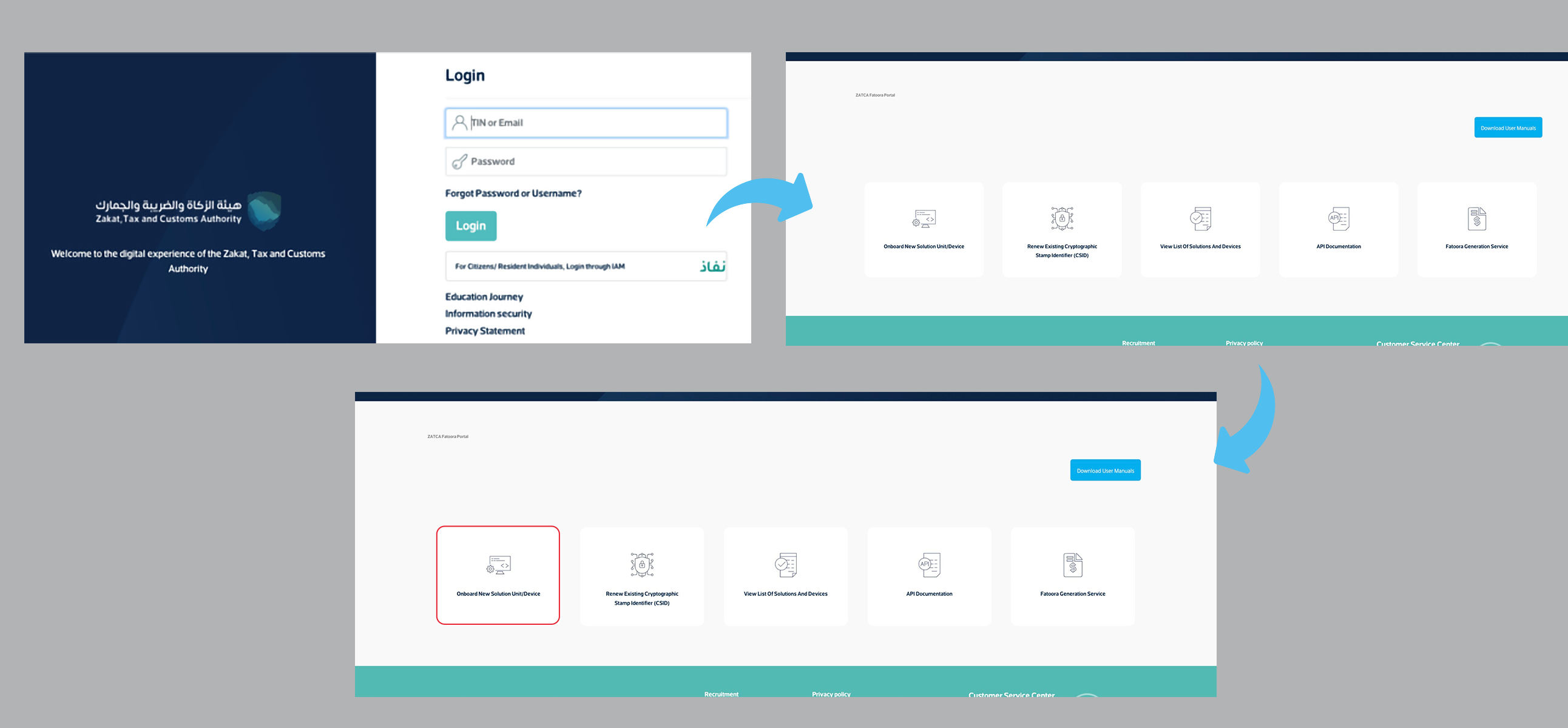
Begin by logging in to your ZATCA/Fatoora Portal account using your official credentials. Ensure you have the necessary permissions to generate OTPs for submissions. If you're unsure about your permissions, contact your organization's ZATCA administrator.
Once logged in, navigate to the OTP Generation section. This is typically located under Security Settings or Submission Tools in the portal dashboard. Bookmark this page for quick access in the future.
Generate OTP
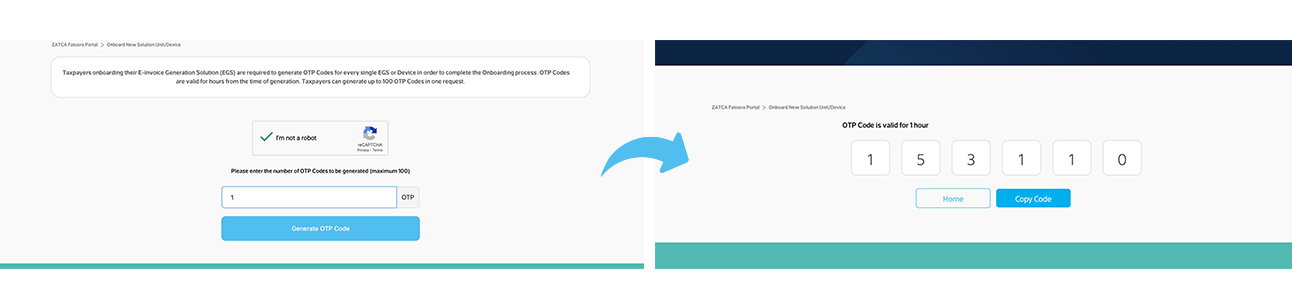
In the OTP section of the Fatoora Portal, click the "Generate OTP" button. The system will create a unique 6-digit code that is valid for a limited time (typically 5-10 minutes). The expiration timer is visible next to the OTP.
We recommend copying the OTP to your clipboard immediately after generation. If you can't copy it, keep the Fatoora Portal open in a separate tab or window as you'll need to enter this code in our software shortly.
Enter OTP in Our Software
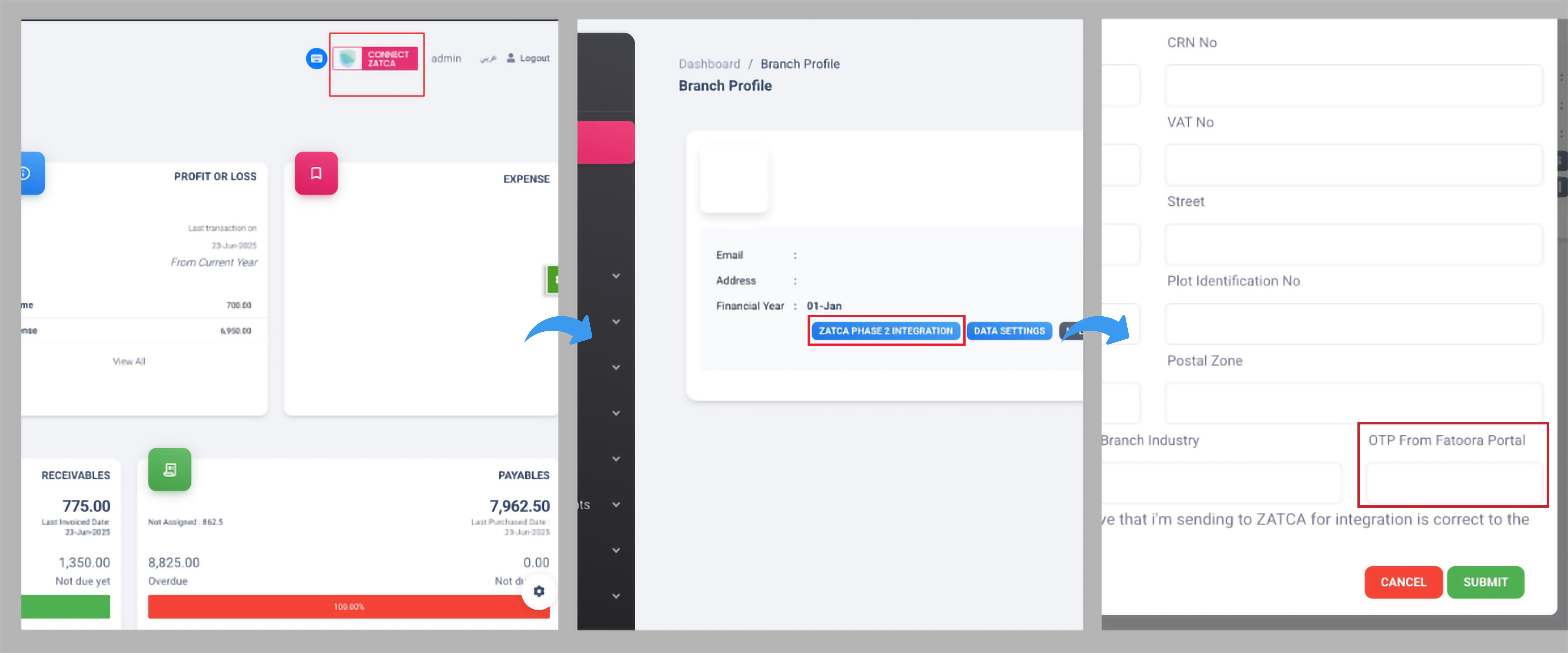
Return to our accounting software and navigate to the ZATCA submission form. Locate the clearly marked "ZATCA OTP" input field. This is usually found in the final step of the submission process.
Paste or type the 6-digit OTP exactly as shown in your Fatoora Portal. Once entered, click the "Submit" button to complete your transaction. Our system will validate the OTP with ZATCA servers in real-time.
Troubleshooting Common Issues
OTP Expired
If your OTP expires, simply generate a new one from the Fatoora Portal and try again.
Connection Issues
Check your internet connection. Our software will automatically retry up to 3 times.